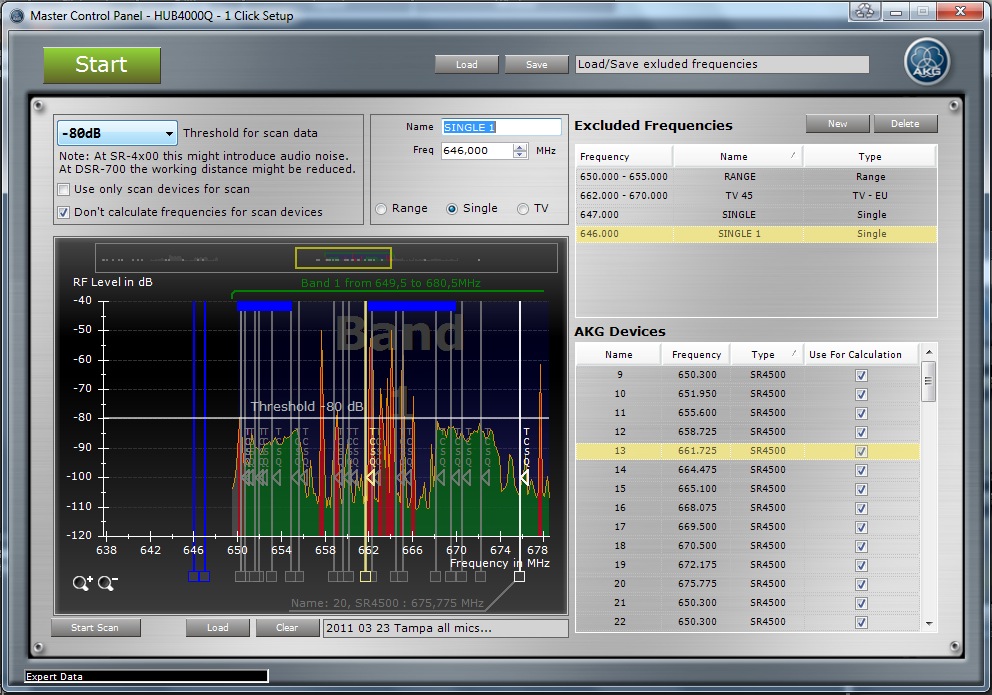
Within 1 Click Setup Expert advanced frequency management/coordination can be done.
Figure: 1 Click Setup Expert
Load Excluded frequencies Button: Loads settings of excluded frequency settings into the excluded frequencies list from a file.
Save Excluded frequencies Button: Saves settings of excluded frequency settings from the excluded frequencies list to a file which can be used later on.
Options
Scan Threshold Dropdown: With the Scan threshold the threshold for excluded scan frequency ranges (red colored regions) at the Frequency Graph Scan data can be adjusted. With a lower Scan threshold like -80dB the excluded frequency regions (red color) within the scan data will be reduced and more green regions will be available which leads to more frequencies being found.
ATTENTION: This can introduce RF noise if the level of RF noise is too high.
Use only Scan devices for scan Checkbox: If checked only Loop Scan devices will be used to perform an environment scan. Loop Scan devices can be configured at the Device Manager.
Don't calcualte frequencies for Scan devices Checkbox: If checked only Loop Scan devices will NOT be considered within the frequency calcualtion (Checked by default). Loop Scan devices can be configured at the Device Manager.
Excluded frequencies
New Button: Adds a new item to the excluded frequencies list.
Delete Button: Deletes the selected item at the excluded frequencies list.
Excluded Frequencies item: All excluded frequency items will be considered within the 1 Click Setup calculation. Frequencies will not be moved/calculated within these excluded frequencies. Also the intermodulation products of single excluded frequencies will be considered.
Each exclude frequency item has several parameters:
Frequency: Frequency of the item
Name: Name of the item
Type: Type of item (Single, Region, TV channel)
Frequency Graph: Shows the Environment Scan data.
Zoom Region (yellow): Shows the currently selected frequency region.
Zoom Icons: With the two Zoom Icons the user can zoom in and out to get a more detailed view of the RF environment.
Start Scan Button: Starts the environment scan.
Load Scan Button: Load environment scan data for being used within 1 Click Setup Expert. The loaded environment scan can be used to calculate compatible frequencies for offline wireless systems.
Clear Scan Button: Clears the environment scan data.
Devices Grid: Shows the details about the found frequencies for devices.
Status Icon of each wireless channel indicated the status of the wireless channel (color is consistent with device marker of device)
The green icon indicates that this device has already a compatible frequency
--> this frequency doesn't need to be changed
The red icon indicates that this device has got a NEW compatible frequency by 1 Click Setup
--> this frequency needs to be CHANGED to make it compatible
The gray icon indicates that this device has either
- NO NEW frequency has been found for this wireless channel
- has not been choosen at 1 Click Setup to be included with the Calc checkbox
- Device is being used as loop scan device
Frequency: Shows the compatible frequency for compatible devices (green and red icona)
Old Frequency: Shows the old frequency of devices for which a NEW compatible frequency has been found
Name: Name of device
Type: Device Type of device
Calc: if selected the device has been used for calculation at 1 Click Setup
Locate Button: Can be used to locate device