Offline HUB4000 Qs are devices which have NO physical representation or NO HiQnet network connection. This is the case if a HUB4000 Q was added to the venue view but has no connection to a hardware HUB4000 Q because there is no HUB4000 Q with the given HiQnet address or System Architect is not connected to a HiQnet network. This offline HUB4000 Q exists only at System Architect.
This offline HUB4000 Q can be configured and controlled like an online HUB4000 Q. An offline HUB4000 Q doesn't receive meter values because meter values are only received from online HUB4000 Qs.
An offline HUB4000 Q can turn online if System Architect gets connected to a HiQnet network and if in the HiQnet network a HUB4000 Q exists with the same HiQnet address like the offline HUB4000 Q. If that is the case, the Sync Dialog of System Architect opens up and the user must decide if the values of the offline HUB4000 Q should be sent down to the hardware HUB4000 Q or if the values of the hardware HUB4000 Q should be sent up to System Architect HUB4000 Q plug-in.
To add an offline HUB4000 Q the user must simply drag and drop a HUB4000 Q icon from the Devices Toolbox of the System Architect into the Venue View or insert a HUB4000 Q with a right click into the venue view and choose Insert Device – AKG – HUB4000 Q from the Context Menu. An online HUB4000 Q gets offline if the System Architect loses network connection to this HUB4000 Q.
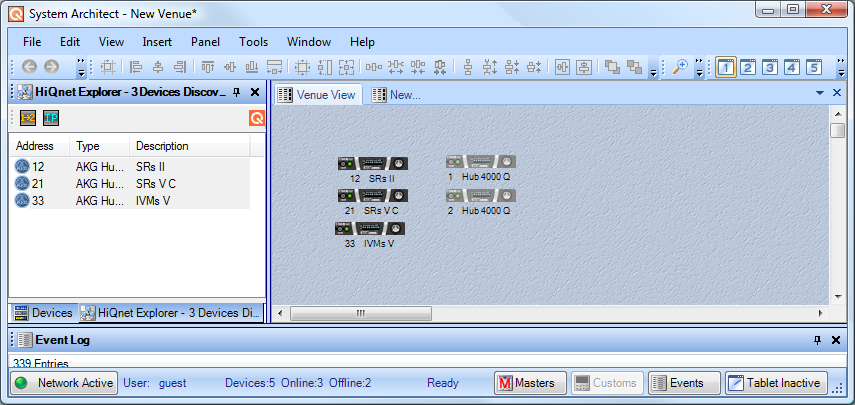
User can easily identify an offline HUB4000 Q with its gray icon at venue view or if the product panel is opened, with the offline Stripes background.
Figure: Venue View with 3 online and 2 offline HUB4000 Qs
This is an online HUB4000 Q with some online Stripes.
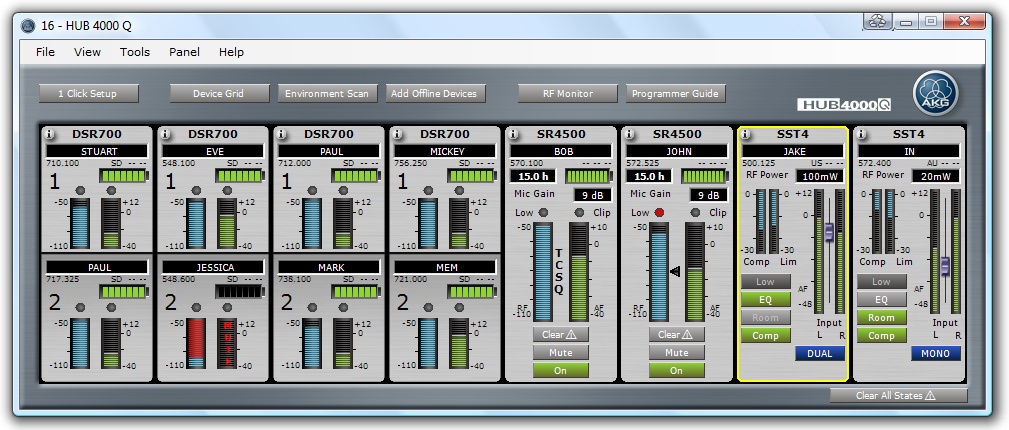
Figure: Online HUB4000 Q Product Panel with online Stripes
Furthermore it's possible that an online HUB4000 Q has some offline Stripes. This is the case if some of the Stripes have no physical representation in the online HUB4000 Q.
All Stripes of a HUB4000 Q will appear offline in the Product Panel if the HUB4000 Q is taken offline.
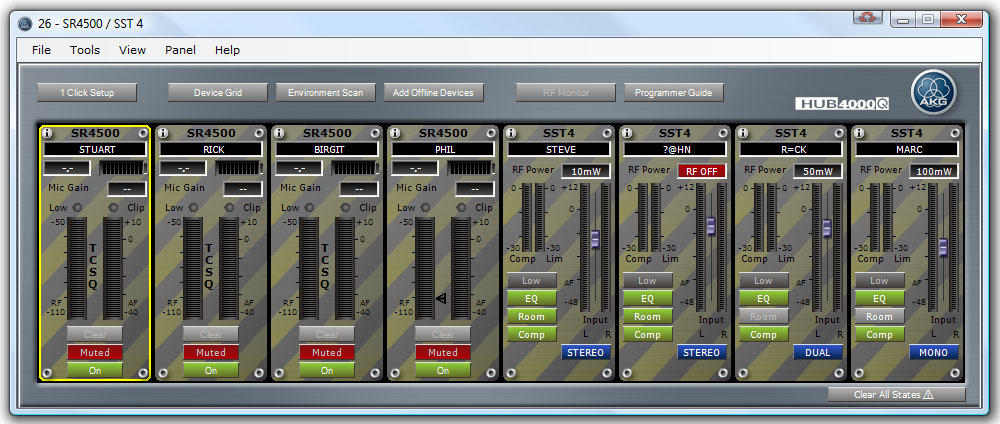
Figure: Offline HUB4000 Q Product Panel with offline Stripes
If the HUB4000 Q's status changes to online, Stripes which have matching hardware or physical representations will show as online.
Following parameters must match so that a Stripe comes online again:
The slot index of the Stripe and the slot to which the physical AKG Device is connected to a HUB4000 Q must be the same
The device type (SR4000/4500, SST4, ...) must be the same at the Stripe and the physical AKG Device
The band variant (I, II, III, IV, V, V-B, 5, 6, 7, 8...) at the Stripe and the physical AKG Device must be the same
If one of the three criteria is not fulfilled a Mismatch will occur and the Stripe (red background for indicating the Mismatch) will be displayed in Mismatch state. For resolving this Mismatch please refer to the Mismatch chapter.
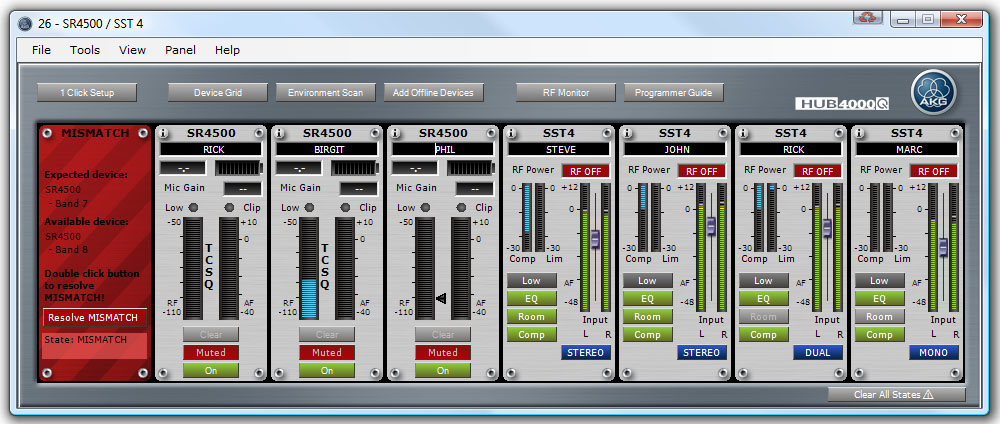
Figure: HUB4000 Q Product Panel with online and a mismatching (red) Stripe